How to Turn Off ACR on Your Smart TV (Samsung, LG, Vizio, Sony, Roku)
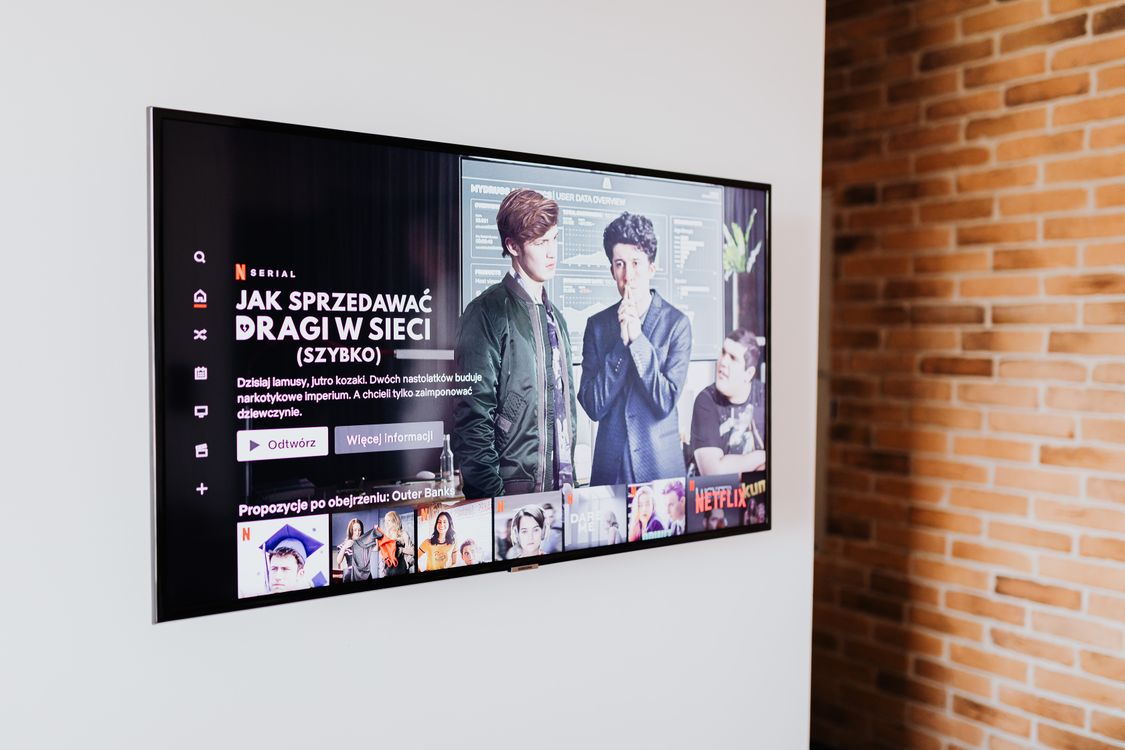
If you want to turn off ACR on your smart TV, you’re not alone, and you’re right to want to. Most smart TVs sold in the U.S. quietly watch what’s on the screen, identify it, and send that information back to the manufacturer. It doesn’t matter whether you’re streaming Netflix, watching cable, or playing a video game through HDMI. The feature is called automatic content recognition, or ACR, and it’s switched on by default on most sets.
This guide explains what ACR actually does, why it became a legal issue in 2026, and step by step how to turn it off on Samsung, LG, Vizio, Sony, Roku, and other popular TVs. It takes about five minutes.
What Is ACR and Why Does Your TV Have It?
Automatic content recognition takes short samples of the picture or sound on your screen, turns them into a digital fingerprint, and matches that fingerprint against a database of shows, movies, and ads. The result is a detailed log of what your household watches and when.
TV makers use that data to target ads, measure ad campaigns, and sell viewing insights to advertisers. It’s a big part of why smart TVs are so cheap: the hardware is often sold on thin margins, and the data and ads make up the difference.
What makes ACR different from, say, your Netflix history is that it sees everything on the screen, including content from cable boxes, game consoles, and anything plugged into an HDMI port.
Why ACR Made Headlines in 2026
In 2026, ACR stopped being an obscure setting. The Texas Attorney General took action against several major TV makers over ACR data collection, including Samsung, LG, Sony, Hisense, and TCL. According to Malwarebytes’ report on the case, Samsung settled and agreed to stop collecting ACR data from Texas viewers without explicit, informed consent, and to rewrite its on-screen privacy prompts. A separate class action against Samsung is ongoing in New York.
If you don’t live in Texas, nothing has changed for you automatically. You still need to turn off ACR yourself.
How to Turn Off ACR on Your Smart TV
Menu names change between models and years, so if you don’t see the exact wording, look for anything mentioning viewing information, viewing data, or content recognition.
Samsung
- Open Settings, then All Settings.
- Go to General & Privacy, then Terms & Privacy, then Privacy Choices.
- Turn off Viewing Information Services.
- While you’re there, also consider turning off Interest-Based Advertising and Voice Recognition Services.
LG (webOS)
- Open Settings, then All Settings.
- Go to General, then System, then Additional Settings.
- Turn off Live Plus.
- Turn on Limit Ad Tracking if your model has it.
Vizio
- Press Menu on the remote.
- Go to System, then Reset & Admin.
- Turn off Viewing Data.
Sony (Google TV and Android TV)
- Open Settings, then All Settings, then Privacy.
- Turn off Samba Interactive TV on models that include it.
- On some models, go to Device Preferences, then Usage & Diagnostics, and turn off reporting.
Roku TVs (including many TCL and Hisense sets)
- Go to Settings, then Privacy.
- Under Smart TV Experience, turn off Use info from TV inputs.
- Under Advertising, turn off personalized ads and reset your advertising ID.

Quick Reference: Where to Turn Off ACR
| TV brand | Setting to turn off | Where to find it |
|---|---|---|
| Samsung | Viewing Information Services | General & Privacy, Terms & Privacy |
| LG | Live Plus | General, System, Additional Settings |
| Vizio | Viewing Data | System, Reset & Admin |
| Sony | Samba Interactive TV | Settings, Privacy |
| Roku TV | Use info from TV inputs | Settings, Privacy |
Other Privacy Settings Worth Changing
ACR is the biggest one, but smart TVs collect other data too. While you’re in the settings menu:
- Turn off personalized or interest-based ads. You’ll still see ads, but they won’t be targeted using your profile.
- Reset your advertising ID occasionally.
- Disable voice recognition if you don’t use the voice remote, or limit it to push-to-talk.
- Check the privacy settings again after major updates. Some updates have been known to reset preferences or add new data-sharing options.
- Skip optional agreements during setup. Most TVs let you decline extra data-sharing terms and still use the TV.
Your TV isn’t the only device in the house collecting data. Our guide to what your smart home devices collect and how to stop it covers speakers, cameras, and apps.
Should You Disconnect Your TV From the Internet?
It’s the nuclear option, and it works. A TV that isn’t connected to Wi-Fi can’t send data anywhere. If you stream through a separate device, such as an Apple TV, Roku stick, or game console, you can disconnect the TV itself and lose very little.
The downsides: you won’t get firmware updates, built-in apps stop working, and some TVs nag you to reconnect. For many people, turning off ACR and personalized ads is the sensible middle ground.

Turn Off ACR Today
It takes five minutes to turn off ACR, and it’s one of the most effective privacy changes you can make at home. Do it on every TV in the house, including the one in the guest room, and recheck after big software updates.
If you’re shopping for a new TV during holiday sales, check the privacy settings during setup before you agree to anything. Our Black Friday smart home deals guide has more tips for buying connected devices wisely, and our smart home security tips cover the rest of your network.