Smart Home Problems: Why Things Break and How to Fix Them
Smart home setups look great in demos and product videos. They also break in specific, predictable ways that the demos never show. Understanding the most common failure modes before you build a setup means you can design around them rather than discovering them through frustration.
This guide covers the smart home problems that come up most often — not the catastrophic failures, but the everyday friction points that make people give up on systems that could otherwise work well.
Problem 1: Devices Falling Off the Network
A device that was working yesterday isn’t responding today. It appears offline in the app. Unplugging and replugging it sometimes fixes it; sometimes doesn’t.
Why it happens: WiFi smart devices maintain a constant connection to your router. When the connection drops — due to a router restart, a firmware update, a WiFi channel change, or just network congestion — devices often don’t reconnect automatically. Some manufacturers are better at automatic reconnection than others.
How to fix it: Power cycle the device (unplug for 30 seconds, replug). If it reconnects, it was a temporary network hiccup. If it happens regularly, check that the device is within good WiFi range, that your router isn’t on a congested channel, and that the device firmware is current.
How to prevent it: Switch to Zigbee or Thread devices where possible — these use local radio protocols that don’t depend on your WiFi router and reconnect automatically. Alternatively, a router with good 2.4GHz coverage and fewer devices on that band helps WiFi devices stay connected more reliably.
Problem 2: Voice Commands That Work Once and Then Don’t
“Alexa, turn off the bedroom lights” works in the morning. Doesn’t work in the evening. Works again tomorrow.
Why it happens: Usually one of three things. The device itself went offline (see above). The device name in the platform has a conflict — two devices with similar names confuse the assistant. Or the assistant is using a cached state that doesn’t match reality.
How to fix it: Check the device status in the app directly. If it shows as offline, that’s the issue. If it shows as online but the command doesn’t work, try renaming the device to something more distinct. “Bedroom light” is more reliable than “lamp” — which could match multiple devices.
Long-term fix: Use groups thoughtfully. “Turn off bedroom lights” targeting a group called “Bedroom Lights” that contains specific devices is more reliable than individual device name recognition.

Problem 3: Automations That Fire at the Wrong Time
The good morning routine runs at 7am on Saturday when you wanted to sleep in. The motion light turns on at 3pm when there’s plenty of natural light. The leaving routine fires when only one person in a two-person household leaves.
Why it happens: Automations without conditions are too broad. A time-based trigger doesn’t know it’s a weekend. A motion sensor doesn’t know if it’s light or dark. A location trigger doesn’t know if someone else is still home.
How to fix it: Add conditions to every automation. “Only on weekdays.” “Only after sunset.” “Only when all household members have left.” Every major platform supports these conditions — they’re just not set by default. We covered conditions in detail in our Alexa routines guide.
Problem 4: The Wall Switch Problem
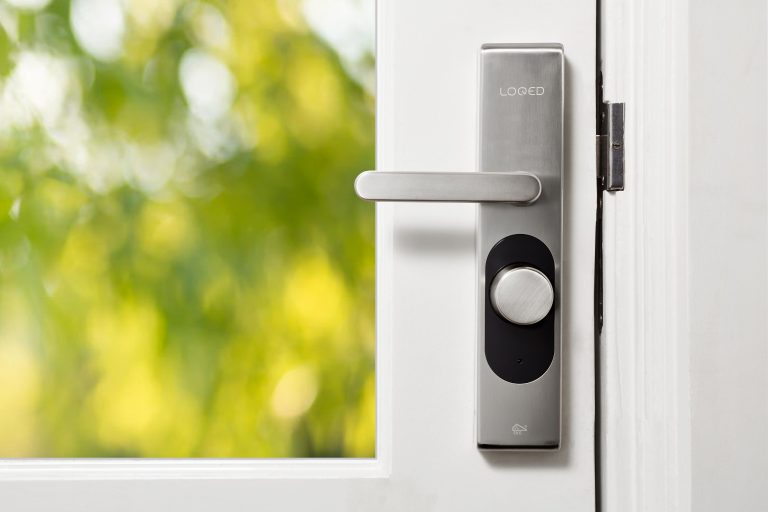
Someone turns off the wall switch, and the smart bulb loses power. The bulb is now unresponsive to voice commands, schedules, and the app. Every automation for that room is broken until someone manually switches the power back on.
Why it happens: Smart bulbs need constant power to maintain their wireless connection. Turning off the physical switch cuts that power. This is the most common point of conflict in households where not everyone is engaged with the smart home setup.
How to fix it: Either replace the wall switch with a smart switch (so the switch sends commands to the bulb rather than cutting power), or use a wireless battery switch that sends commands directly to the hub — Philips Hue Tap, IKEA Rodret, Lutron Aurora — that mounts over the existing switch. This is covered in full in our smart bulbs vs switches comparison.
Problem 5: The App That Stops Working
You open the smart home app and half your devices show as unavailable, or the app crashes, or the response time has gone from instant to 30 seconds.
Why it happens: Cloud-dependent platforms route commands through the manufacturer’s servers. Server issues, API rate limits, or network problems between you and the server all affect response time and availability. This is a structural issue with cloud-dependent setups, not a bug you can fix.
How to fix it short-term: Force close the app, check if the service has a status page (most major platforms do — search “[platform name] status”), and use physical controls in the meantime.
Long-term solution: Migrate toward platforms with local control. Home Assistant running on local hardware has no cloud dependency and doesn’t slow down based on server load. Apple Home runs automations locally on HomePod or Apple TV. Both are meaningfully more reliable than fully cloud-dependent alternatives.
Problem 6: Devices That Work in the App But Not with Voice
The device responds fine in its own app. It also appears in the platform (Alexa/Google). But voice commands to it don’t work or are inconsistent.
Why it happens: The integration between the device’s cloud and the platform’s cloud isn’t working correctly. Either the authentication has expired, the API has changed, or there’s a temporary service issue.
How to fix it: In Alexa: go to Skills → the relevant skill → disable and re-enable it. This re-authenticates the integration. In Google Home: unlink and relink the account in the home settings. Usually solves it immediately.
Problem 7: Schedules That Ignore Daylight Saving Time
Your lights were turning on at 6pm correctly. Now it’s two weeks after a clock change and they’re turning on at 5pm or 7pm.
Why it happens: Some smart home devices store schedules in UTC rather than local time. When your local timezone changes but the device doesn’t update its offset, the schedule fires at the wrong local time.
How to fix it: Check your platform’s timezone settings and update them after any clock change. Most modern platforms handle this automatically now, but older firmware or less-maintained platforms don’t. Using sunrise/sunset triggers rather than fixed clock times avoids this problem entirely — the sun doesn’t follow daylight saving time.

Conclusion
Most smart home problems are predictable and fixable. The ones that persist — devices going offline, voice commands being unreliable, automations firing at wrong times — are almost always solved by switching to local control, adding conditions to automations, or addressing the wall switch conflict with a hardware solution.
The fundamental principle: a smart home that works 95% of the time is more frustrating than a dumb home that works 100% of the time. The 5% that doesn’t work becomes the thing you remember. Building for reliability from the start — local control, proper conditions, appropriate protocol choices — prevents most of the common failure modes before they become habits of frustration.